
I’ve always wanted Scira to feel less like a search box and more like an actual collaborator. Something that doesn’t just find information but gets things done with you. Today, that vision takes a big step forward.
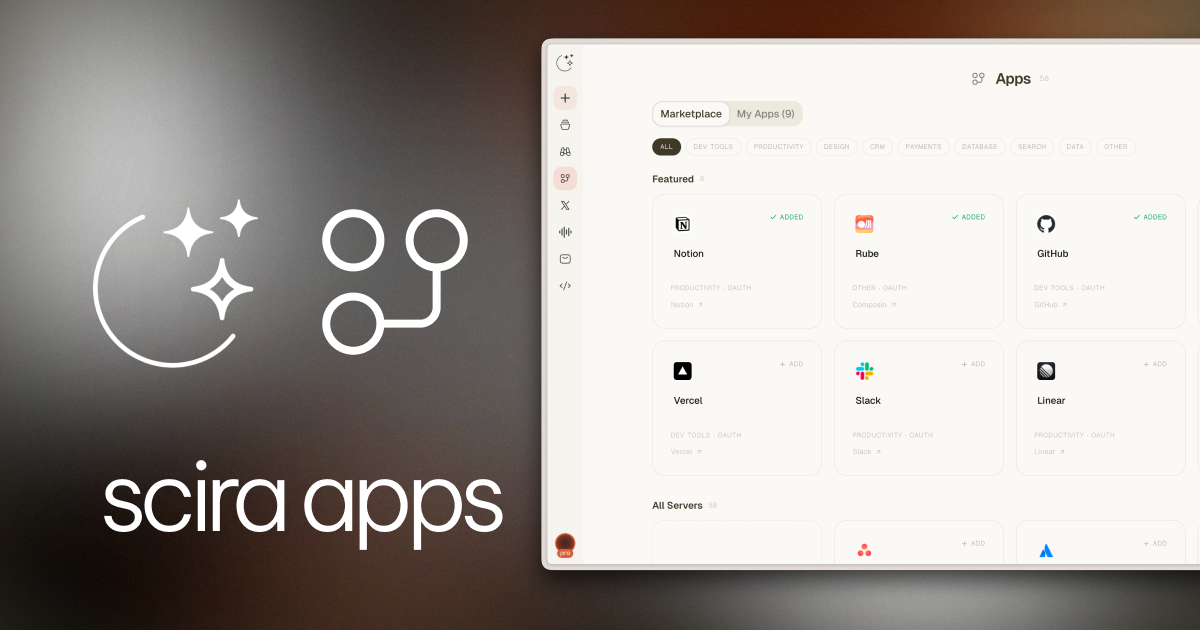
Introducing Apps — a Scira Pro feature that lets you connect your favorite tools directly into Scira and have the AI use them on your behalf, in real time.
What is Apps?
Apps is Scira’s integration hub. Instead of copy-pasting information between tabs, you connect your tools once and let the AI work across all of them.
Connect GitHub and ask Scira to check your open pull requests. Connect Notion and ask it to search your workspace. Connect Stripe and ask it to pull up recent failed payments. The AI figures out which tool to use, calls it, and gives you the answer, all without you leaving the chat.
We’re starting with 55+ services across Dev Tools, Productivity, Design, CRM, Payments, Database, Search, and more.
How it works
1. Browse the marketplace
Head to scira.ai/apps to see the full marketplace. You can filter by category or search for a specific tool.
Featured picks to start with:
- GitHub — repos, PRs, issues, code search
- Notion — search and navigate your workspace
- Linear — issues, projects, and cycles
- Vercel — deployments, logs, and domains
- Slack — messages and channel lookups
- Figma — files and design tokens
- Exa Search — AI-native web search
- Canva — design assets
2. Connect with one click
Most apps use OAuth. Just click Connect, authorize in the popup, and you’re done. No tokens to copy, no config files to edit.
For services that require an API key (HubSpot, Zapier, Render, etc.), there’s a guided setup that shows you exactly where to find your key and what to paste.
Some apps (like Exa and DeepWiki) are completely open with no auth needed at all.
3. Switch to Apps mode and ask away
In the chat, switch to Apps mode. The AI will have access to all your connected tools and will figure out which ones to call based on what you ask.
You can ask in plain language:
“What are the open issues assigned to me in Linear?”
“Summarize the last 5 Stripe payments that failed.”
“Search my Notion for the product spec we wrote last month.”
The AI reasons about your question, calls the right tools in sequence, and synthesizes the results into a clear response.
Watch it work in real time
When the AI uses your connected apps, you see every step live. Each tool call shows up as it happens, the input going in, the output coming back, organized in a clean collapsible timeline.
You’re never left wondering what the AI did or which service it touched. It’s all there, transparent and auditable, and it collapses when done so it doesn’t clutter your conversation.
Any app, not just the marketplace
The marketplace is a curated starting point but you’re not limited to it. If you have a custom internal tool or a service we haven’t added yet, you can paste its URL directly and connect it yourself. As long as it speaks MCP, it works.
Your data, your control
Every app you add lives in your account. You can enable or disable individual apps without disconnecting them, so you can control exactly what the AI has access to at any given time. Enabled apps with full setup rise to the top of your list so you always know what’s active.
OAuth tokens are stored per-server, per-user. Nothing is shared between accounts.
Important
Scira Pro Feature: Apps is available exclusively to Scira Pro subscribers.
What’s next
This is the beginning. The marketplace will grow, and we’ll keep improving how the AI uses apps together, chaining tools, reasoning across services, and handling more complex multi-step workflows.
If there’s a service you want to see in the marketplace, let me know on X.
Go connect something at scira.ai/apps